 Gridwright
Start for $1
Godot Sprite Sheet Animation: AnimatedSprite2D in Godot 4
Animate a sprite sheet in Godot 4: cut it into SpriteFrames, set FPS and loops, play walk and idle from code, or use Sprite2D frames with an AnimationPlayer.
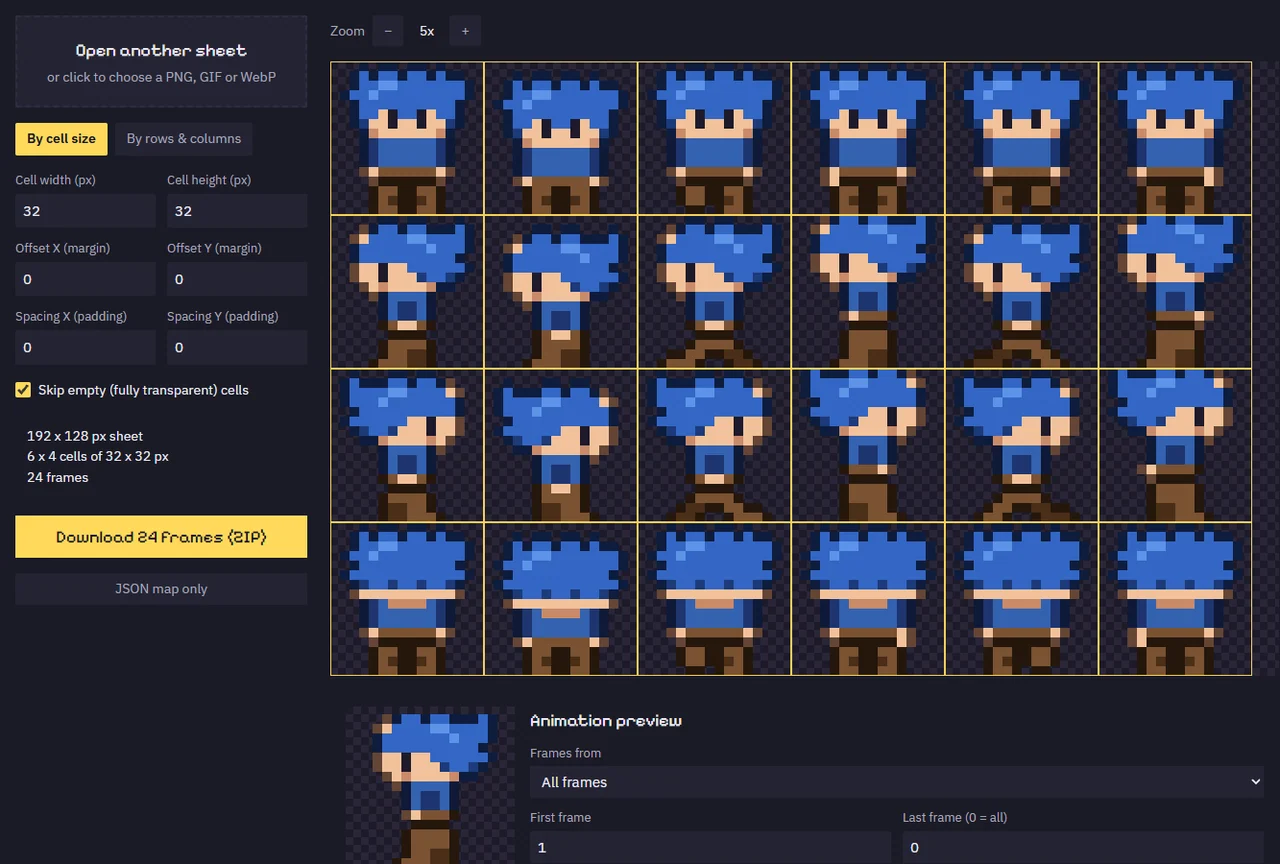
You have a character sheet: four rows of walking, a row of idle, a row of attack. In Godot 4 you drop it on a sprite and see the whole sheet at once, a tiny grid of forty little heroes. Then you find two ways to animate it, AnimatedSprite2D and AnimationPlayer, and every tutorial uses the other one.
This guide shows both, says when to use which, and gives the code to play walk and idle from the player script. At the end there is a quicker way to get a sheet into Godot with every animation already named.
Which node: AnimatedSprite2D or Sprite2D with AnimationPlayer?
AnimatedSprite2D plays a SpriteFrames resource: named animations, each a list of frames with a speed and a loop setting. It is the quickest way to animate a character, and the one to use for most 2D games.
Sprite2D with an AnimationPlayer cuts the sheet with Hframes and Vframes and animates the Frame number on a timeline. Use it when the animation must do more than change frames: move a hitbox on the third frame of a sword swing, play a sound on a footstep, or flash the sprite when it is hit.
Many games use both: AnimatedSprite2D for the frames, and an AnimationPlayer only for the attacks that need timed events.
Method 1: AnimatedSprite2D and SpriteFrames
- Add an AnimatedSprite2D under your character (a CharacterBody2D, for example).
- In the Inspector, set Sprite Frames to New SpriteFrames, then click it. The SpriteFrames panel opens at the bottom.
- There is one animation called
default. Rename it toidle, and add more with the Add Animation button:walk,attack. - With
walkselected, press Add frames from a Sprite Sheet (the grid icon). Pick your PNG. - In the dialog, set Horizontal and Vertical to the number of columns and rows in the sheet. If the sheet has a gap between frames or a border, set Separation and Offset too.
- Click the frames of the walk row in order, then Add Frames.
- Set the animation's speed in FPS (8 to 12 suits most pixel-art walks) and turn Loop on or off. Attacks and deaths usually play once.
Repeat steps 4 to 7 for every row. Press the Autoplay on Load button on idle so the character never shows a blank frame.
If the frames look blurry, open Project Settings, go to Rendering > Textures and set Default Texture Filter to Nearest.
Play animations from code
With the animations named, the player script only picks which one to play:
@onready var sprite = $AnimatedSprite2D

func _physics_process(delta):
    var dir = Input.get_vector("ui_left", "ui_right", "ui_up", "ui_down")
    velocity = dir * 80.0
    move_and_slide()
    if dir != Vector2.ZERO:
        sprite.play("walk")
        if dir.x != 0:
            sprite.flip_h = dir.x < 0
    else:
        sprite.play("idle")
Calling play() every frame with the animation that is already running does not restart it, so this is safe. flip_h mirrors the side view, which saves you drawing a left-facing row. For an attack that must finish before the player moves again, connect the animation_finished signal and go back to idle there.
For a top-down character with four directions, give each direction its own animation (walk_down, walk_up, walk_side) and choose by the larger axis of the input.
Method 2: Sprite2D, Hframes and an AnimationPlayer
- Add a Sprite2D and set its Texture to the sheet.
- Under Animation in the Inspector, set Hframes to the number of columns and Vframes to the number of rows. The sprite now shows one frame, and Frame picks which.
- Add an AnimationPlayer next to it and create an animation, for example
attack. - Move the timeline, change Frame on the Sprite2D and press the key icon beside it. Key each frame in turn.
- On the same timeline, key a hitbox's position, a sound in an audio track, or a method call, at the exact frame it belongs to.
The frame numbers count left to right, top to bottom, starting at 0. So with 8 columns, the first frame of the third row is frame 16.
The slow part: cutting the sheet
Both methods assume a clean grid: every frame the same size, in the same place in its cell. Real sheets are not always like that. A sheet from an asset store may have uneven spacing, a border round it, or frames you need for one animation spread over two rows. And the SpriteFrames dialog has to be clicked through again for every animation of every character.
The Sprite Sheet Cutter does that part outside Godot. Drop the sheet in and check the yellow cut lines. Set the cell size, offset and spacing, or the rows and columns, until every line sits between frames. Pick a row and watch the animation preview, so you see a wrong cut before it reaches the game. Then download every frame as a PNG, with a JSON map and a Godot SpriteFrames file. Load that file into the AnimatedSprite2D's Sprite Frames and the frames are already in.
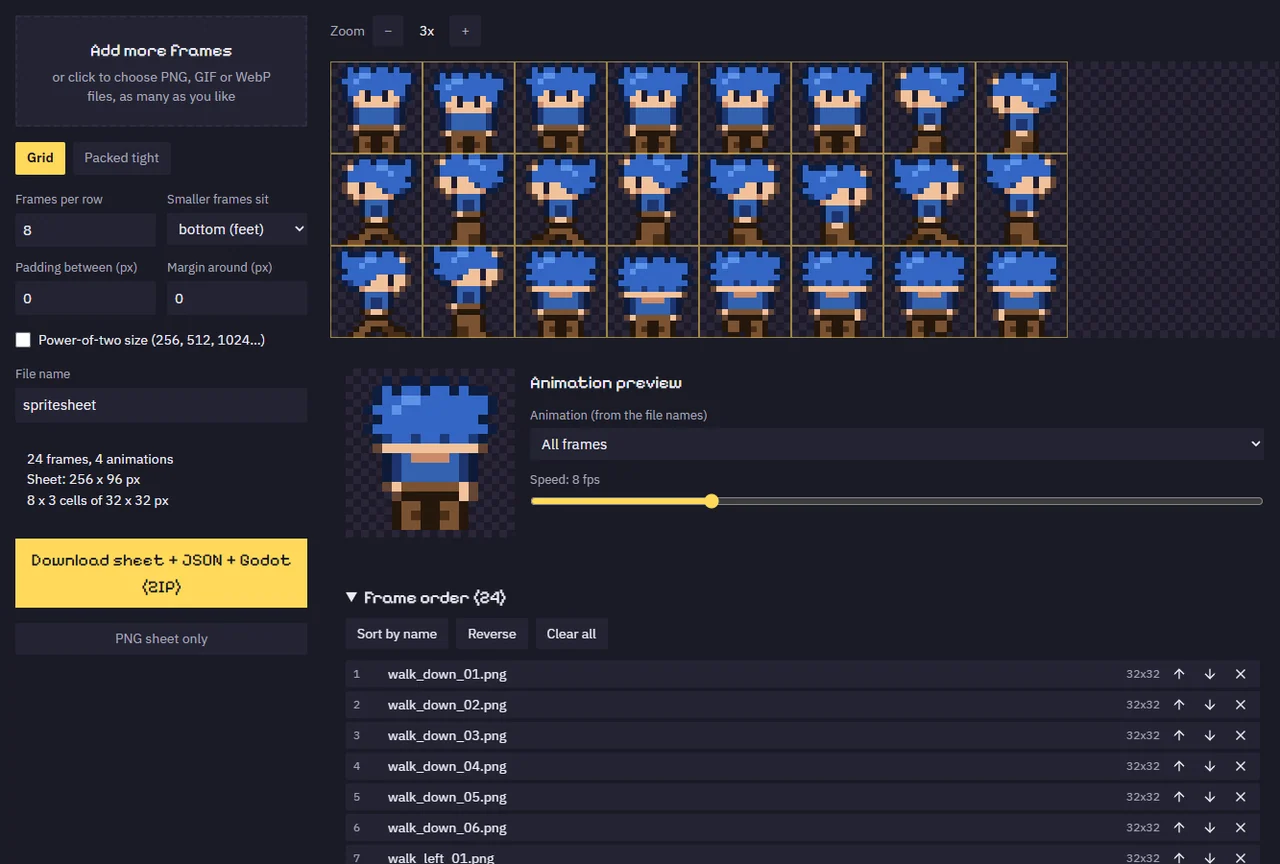
Going the other way, from loose frames to one sheet, is the Sprite Sheet Maker's job. Frames named walk_01, walk_02 and idle_01 become the animations walk and idle in its Godot 4 SpriteFrames file, ready for the code above. Both run in your browser and never upload your art.
Every Gridwright asset pack, made to fit together, and all 31 tools for the fiddly work, with every new release, for $17 a month. Try it in your own game first: 3 days for $1, cancel any time.
Start for $1Common problems and their fixes
The whole sheet shows instead of one frame. On a Sprite2D, Hframes and Vframes are still 1. On an AnimatedSprite2D, the sheet was added as one frame: use Add frames from a Sprite Sheet, not drag and drop.
The character slides a little on every step. The frames are not lined up in their cells. Line them up on the same feet position before cutting, and check the result in a preview.
The animation is stuck on its first frame. It is not playing: call play(), or turn on Autoplay on Load. Or Speed Scale is 0.
The edges of the sprite are soft or show lines. Use Nearest filtering and whole-number zoom on the camera.
Try it on your own sheet
Open the Sprite Sheet Cutter page to see it cut a sheet. It is one of 32 tools in Gridwright, and the 132 asset packs that come with it include characters already drawn as sheets on one grid. Start for 3 days for $1 and have your character walking in Godot today.
Every Gridwright asset pack, made to fit together, and all 31 tools for the fiddly work, with every new release, for $17 a month. Try it in your own game first: 3 days for $1, cancel any time.
Start for $1