 Gridwright
Start for $1
Sprite Sheet Generator Online: Frames to One Sheet
Turn loose animation frames into one sprite sheet with a JSON atlas for Phaser and PixiJS and a Godot SpriteFrames file. Grid or packed, in your browser.
Your walk cycle is twelve loose PNGs. The run cycle is eight more, the attack is six, and the engine wants one picture with all of them in it, plus a file that says where every frame is. So you open an image editor, set up a grid, drag frames into place one by one, count pixels for the JSON, and then notice that walk_10 landed before walk_2.
A sprite sheet generator does that part for you. This guide explains what a good sheet needs, which layout to pick, and how to load it in Phaser, PixiJS, Godot and Unity. Then it shows the Sprite Sheet Maker doing it in seconds, in your browser.
What a sprite sheet is, and why engines want one
A sprite sheet, also called a texture atlas, is many frames packed into one image. Engines like it for two reasons. One texture means fewer draw calls and less switching on the graphics card, so a scene with a hundred animated sprites stays fast. And one file is easier to load, cache and ship than three hundred small ones.
The picture alone is not enough, though. The engine also needs to know where each frame sits. There are two ways to tell it:
- A regular grid. Every frame has the same size, so the engine only needs the cell size, and frame 7 is simply the 7th cell. Godot, Unity, GameMaker and most engines can cut a grid by themselves.
- An atlas file. A JSON file lists every frame by name with its position and size. This lets frames have different sizes and lets the packer fit them tight, which saves a lot of texture space.
Step 1: Name your frames the way the animation runs
Before any tool touches them, give your frames names with a number: walk_01.png, walk_02.png, idle_01.png. Two things depend on it.
The order. A plain sort puts walk_10 before walk_2, and your character's legs jump. Either pad the numbers with zeros, or use a tool that sorts numbers the way people count.
The animations. The part before the number, walk or idle, is the animation's name. A good generator groups frames by it, so the atlas already holds named animations, not just a pile of frames.
Step 2: Grid or packed tight?
Grid is the right choice when the frames are the same size, or nearly. It is easy to read, easy to edit later in an image editor, and every engine can cut it without the JSON. Choose the number of frames per row: one animation per row is the classic layout. When frames differ a little, stand each one on the bottom of its cell, so feet stay on the ground line and the character does not bob.
Packed tight is the right choice when frames differ a lot, like an idle pose next to a big sword swing, or when you are packing many characters into one texture. The packer trims the transparent border off every frame and fits the pieces close together. The JSON then remembers each frame's original size and offset, so in the engine the trimmed frame still sits exactly where it was drawn.
Step 3: Padding, margins and power-of-two sizes
Three small settings prevent the most common sheet bugs:
- Padding puts transparent pixels between frames. Without it, a scaled or filtered sprite can pick up a line of colour from the frame next to it.
- A margin keeps the frames away from the edge of the sheet, for the same reason.
- Power-of-two sizes (256, 512, 1024, 2048) are still asked for by some older devices and some engine import settings. Most modern engines do not need them, but they never hurt.
Step 4: Load it in your engine
Phaser. Phaser reads the TexturePacker JSON Hash format directly. Load the sheet with this.load.atlas('hero', 'hero.png', 'hero.json'), then make an animation from the frame names with this.anims.generateFrameNames.
PixiJS. Load the JSON with Assets.load('hero.json'). PixiJS finds the PNG named inside it and gives you a Spritesheet whose textures, and animations if the file lists them, you pass to an AnimatedSprite.
Godot 4. Godot does not read a JSON atlas on its own. Use an AnimatedSprite2D with a SpriteFrames resource: either cut a grid sheet by hand in the SpriteFrames panel, or load a SpriteFrames file that already holds every animation and its frames.
Unity. Import the PNG, set Sprite Mode to Multiple, open the Sprite Editor and use Slice with Grid By Cell Size. For pixel art, set Filter Mode to Point and Compression to None.
The fast way: the Sprite Sheet Maker
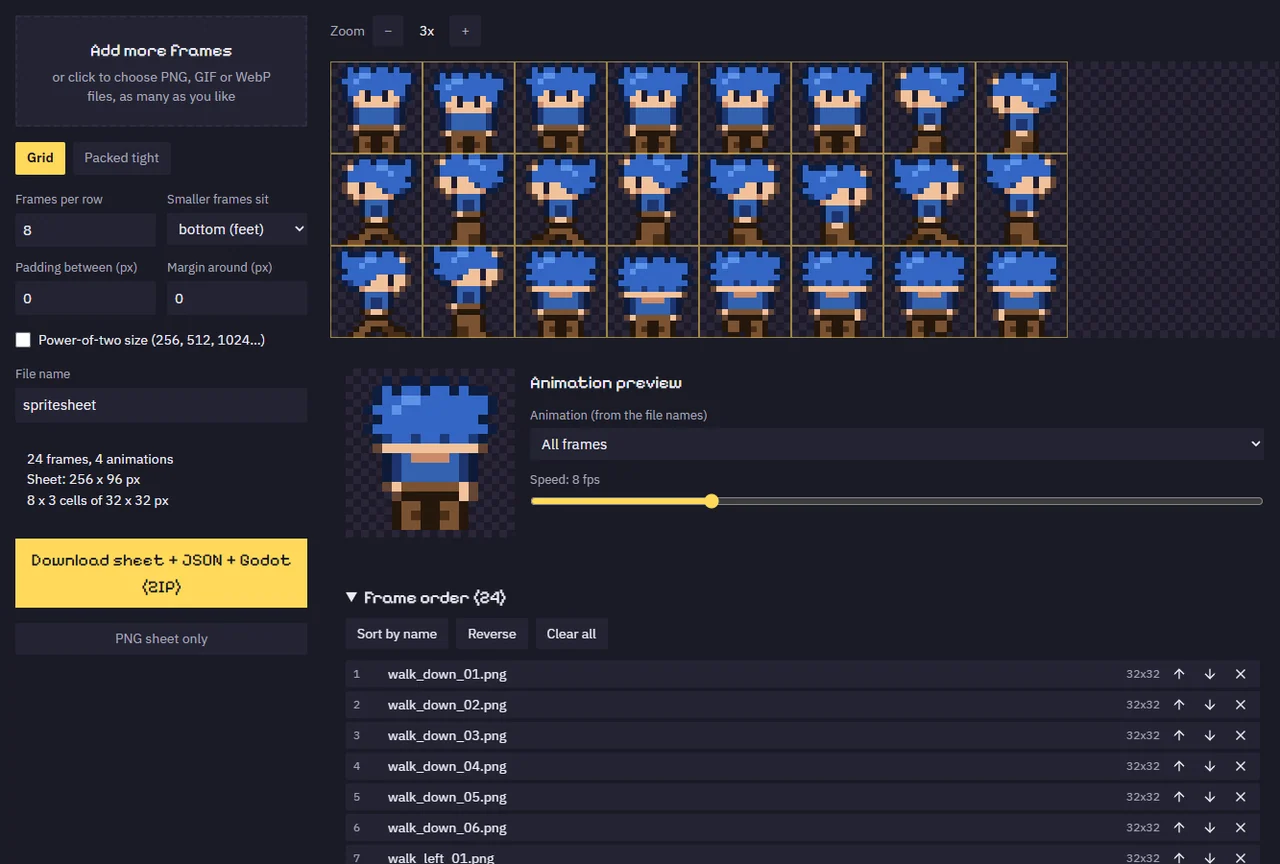
The Sprite Sheet Maker does steps 1 to 4 on one page. Drop in your frames, as many as you have, and it orders them by name the way you numbered them, so walk_2 comes before walk_10.
Pick Grid with the frames per row you want, and smaller frames stand on the bottom of their cell. Or pick Packed tight, and the transparent borders are trimmed off. Padding, a margin and power-of-two sizes are one click each. A preview plays any animation at the speed you set, so you can see a frame out of place before it reaches the game, and you can move or remove frames right there.
Then it saves three things:
- the sheet as a PNG;
- a JSON atlas in TexturePacker's JSON Hash form, which Phaser and PixiJS load as it is;
- a Godot 4 SpriteFrames file for an AnimatedSprite2D.
Frames named walk_01, walk_02 and idle_01 become the animations walk and idle in both files, and a trimmed frame keeps its original size and position in the engine. It runs in your browser and never uploads your frames, so it is safe for art you have not shown anyone yet.
Every Gridwright asset pack, made to fit together, and all 31 tools for the fiddly work, with every new release, for $17 a month. Try it in your own game first: 3 days for $1, cancel any time.
Start for $1Common problems and their fixes
The animation jitters up and down. The frames have different heights and were centred in their cells. Stand them on the bottom of the cell, or pack them tight and let the atlas keep their offsets.
A thin line of colour shows at the edge of a sprite. Neighbouring frames are bleeding in. Add 1 or 2 px of padding and use nearest filtering for pixel art.
Frames play in the wrong order. The names sort as text. Pad the numbers (walk_02, not walk_2), or use a tool that sorts them as numbers.
The engine says the JSON format is wrong. Phaser and PixiJS want JSON Hash or JSON Array. Godot wants a SpriteFrames resource. Save the format your engine reads.
Make your first sheet
Open the Sprite Sheet Maker page to see it at work. It is one of 32 tools in Gridwright, together with the Sprite Sheet Cutter for the opposite job and 132 asset packs whose characters already come as sheets. Start for 3 days for $1 and make your sheets today.
Every Gridwright asset pack, made to fit together, and all 31 tools for the fiddly work, with every new release, for $17 a month. Try it in your own game first: 3 days for $1, cancel any time.
Start for $1